Are coordinates based on the preview size?
No. Coordinates use original-image pixels, with the top-left corner at X=0, Y=0.
Select an area and save it as a JPG, PNG, or WebP image.
or drag and drop a file here.
JPG · PNG · WebP
One file at a time · Up to 20MB · 24 million pixelsDrag to select an area. Drag inside to move it, or drag a corner to resize it.
Free, no sign-up · Processed on your device
Load one supported JPG, PNG or WebP image and check its orientation.
Drag the selection or enter X, Y, width and height in original-image pixels. Use an aspect ratio when a particular shape is required.
Choose an output format, save the cropped image, and reopen it to confirm the exact dimensions and visible content.
No. Coordinates use original-image pixels, with the top-left corner at X=0, Y=0.
No. The saved file contains the selected image area, without the editing overlay.
Choose a format that supports it and inspect the reopened result. JPG cannot retain transparent pixels.
Tool files and calculation inputs are processed in your browser, without uploading them to a processing server.
Keep original files and reopen downloaded results before replacing a working copy.
A 240 × 120px image; X=20, Y=10, width=100, height=50
A 100 × 50px output image
Coordinates use original pixels. The selection overlay is not saved.
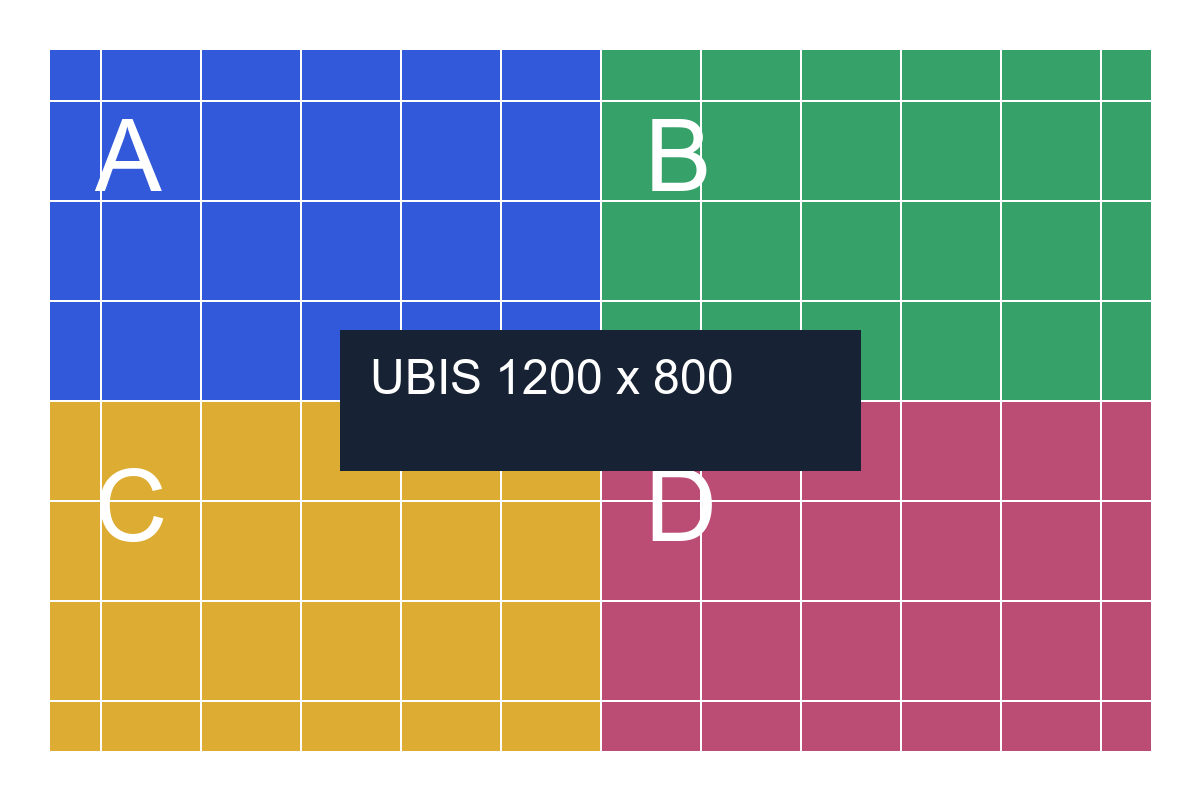
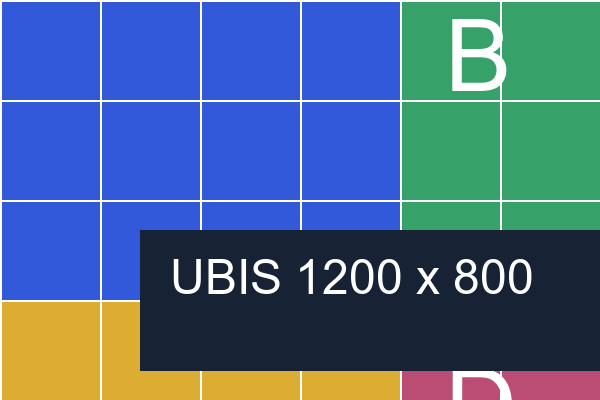
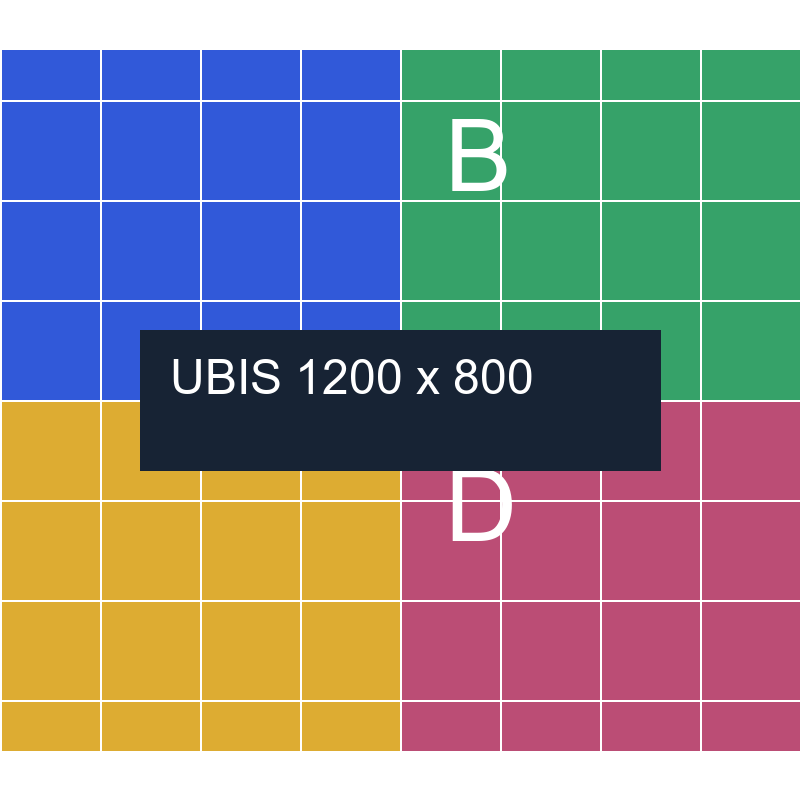
Examples use synthetic, non-personal test material. Results apply to the inputs and settings shown; different files and devices can produce different sizes, timing and appearance.